Guide: find a date your group can make, in 3 steps
2meet is a shared calendar for groups. One person creates an event, everyone else opens a link and marks when they are free. No account, no app, no cost. This guide walks through every step with screenshots.
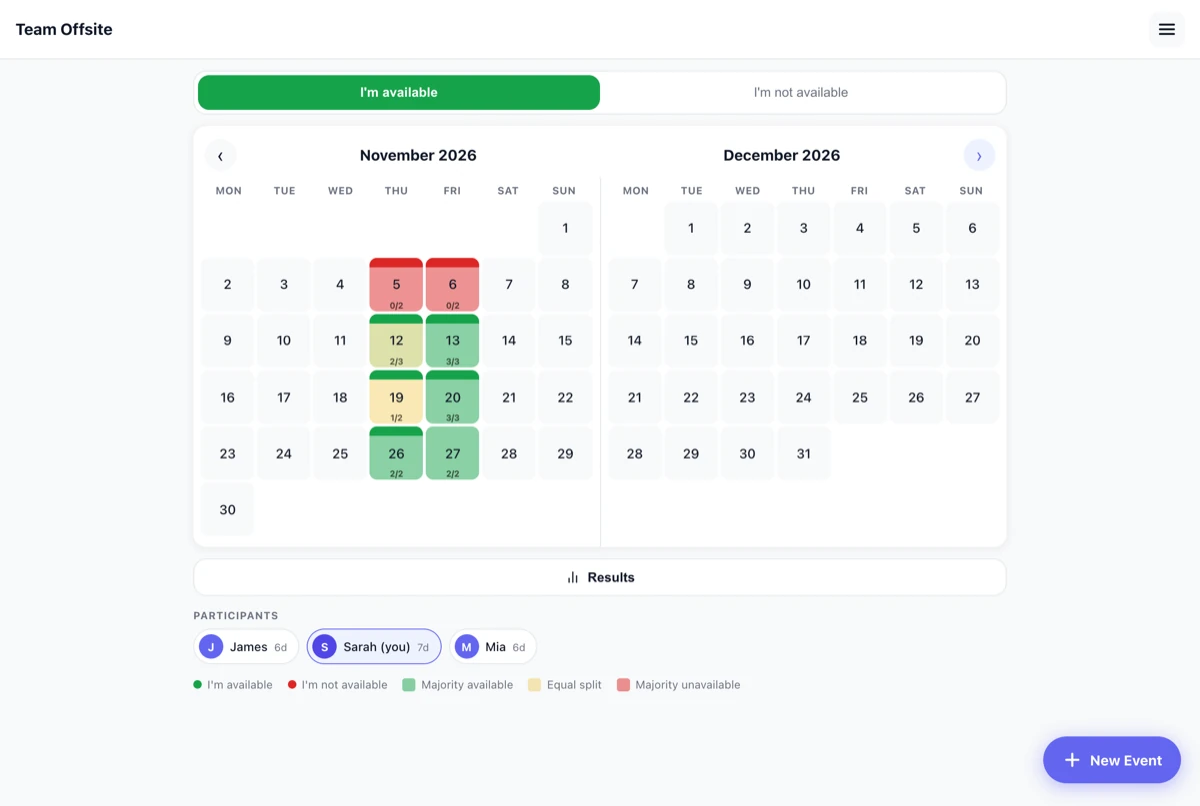
Create an event
On the start page, tap "Create new event". You give the event a name and enter your first name. Nothing else is asked for – no email address, no password.
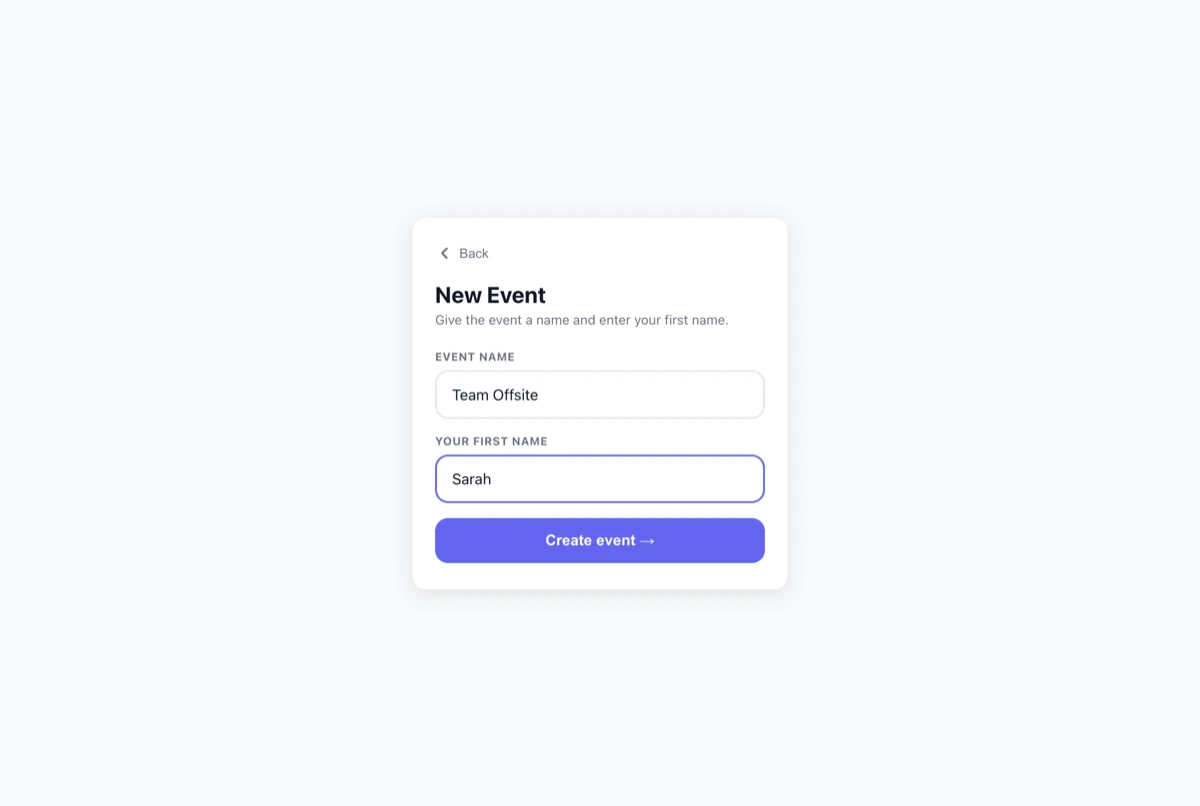
Share the link
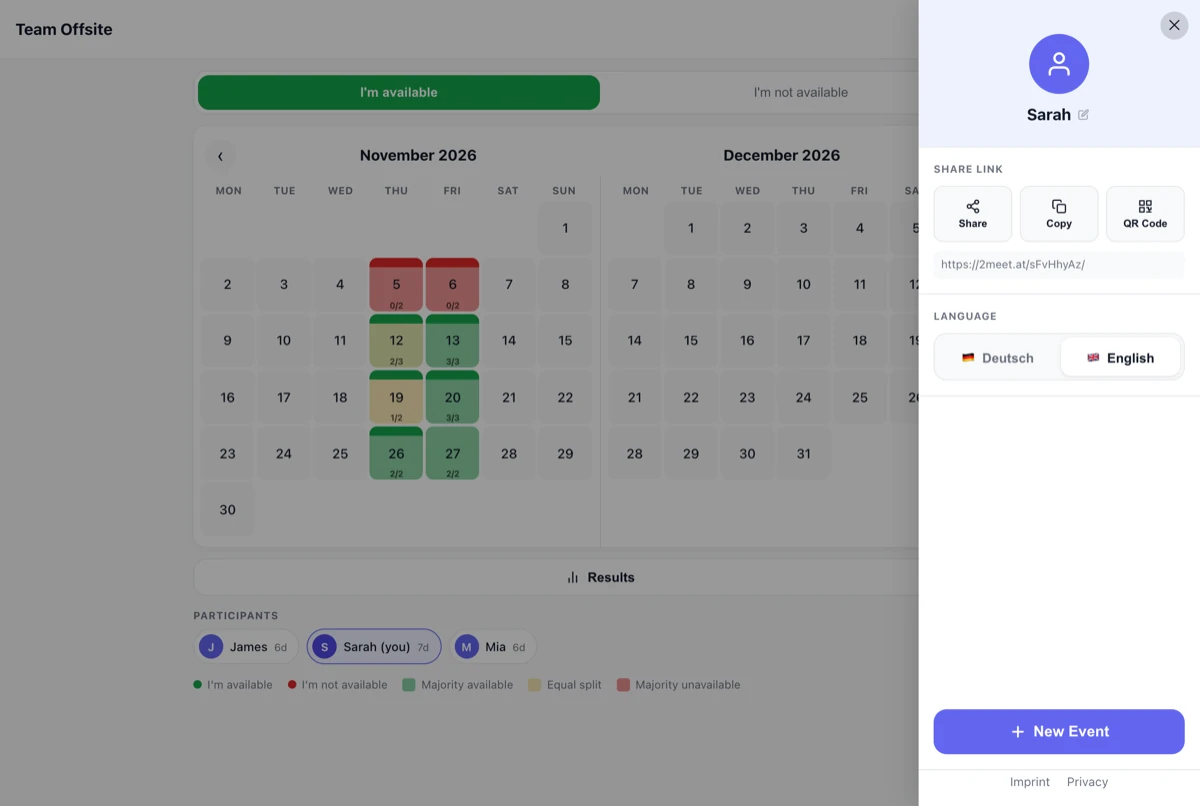
Once created, your event gets its own address. From the menu in the top right you can share it via WhatsApp, iMessage or email, copy it to the clipboard, or show a QR code – handy when everyone is sitting together.
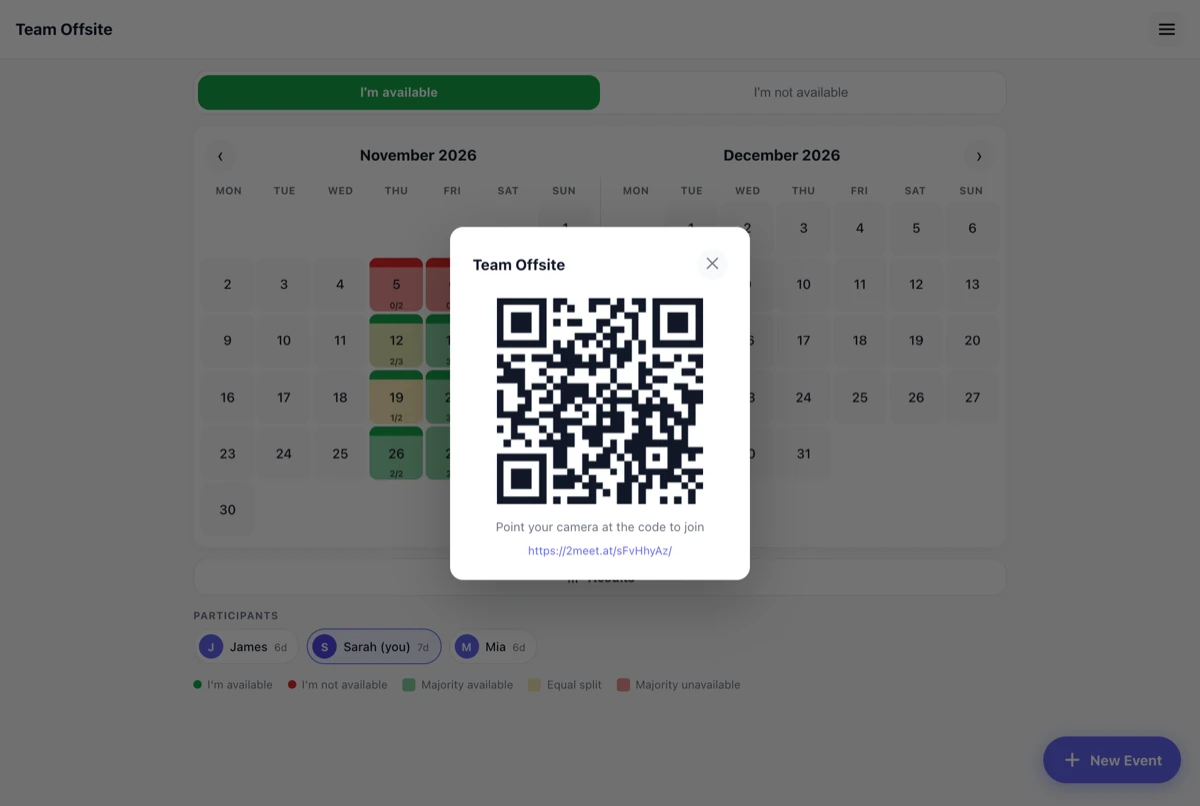
Join and vote
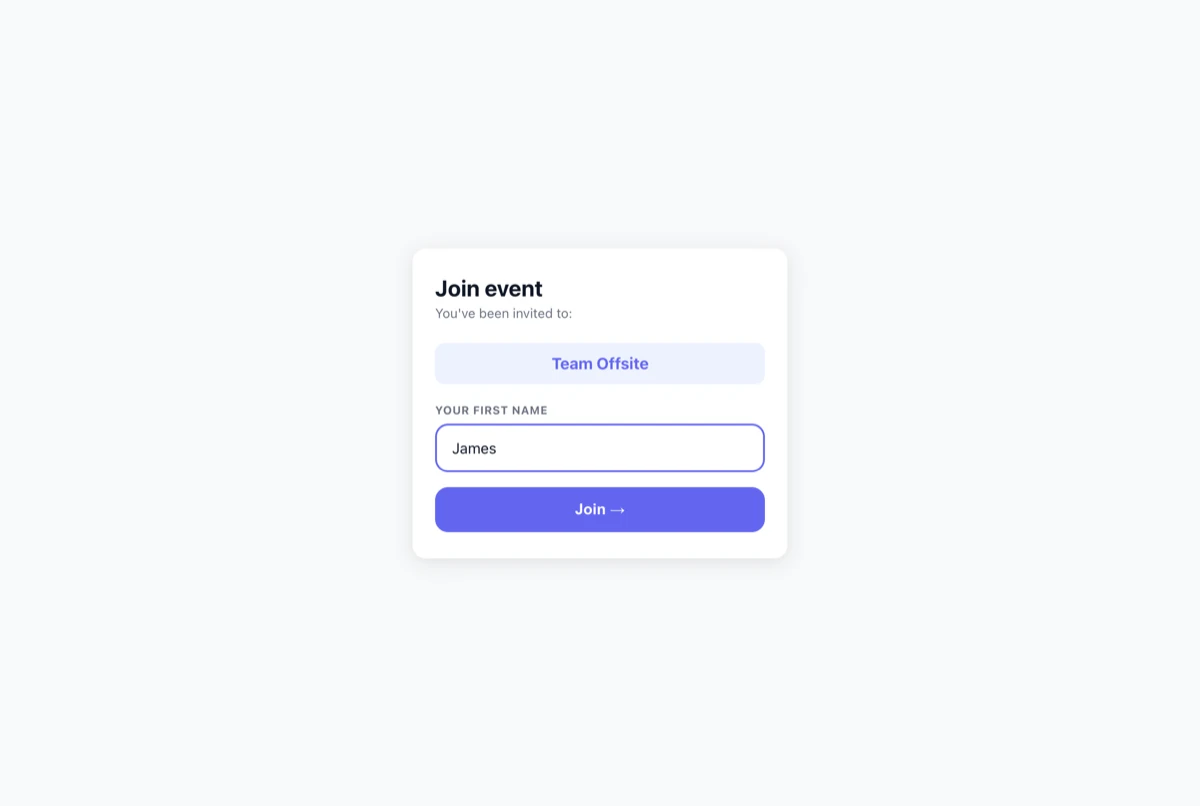
Whoever opens the link enters a first name once and lands directly in the calendar. Next time that step is skipped – the name is remembered.
How voting works
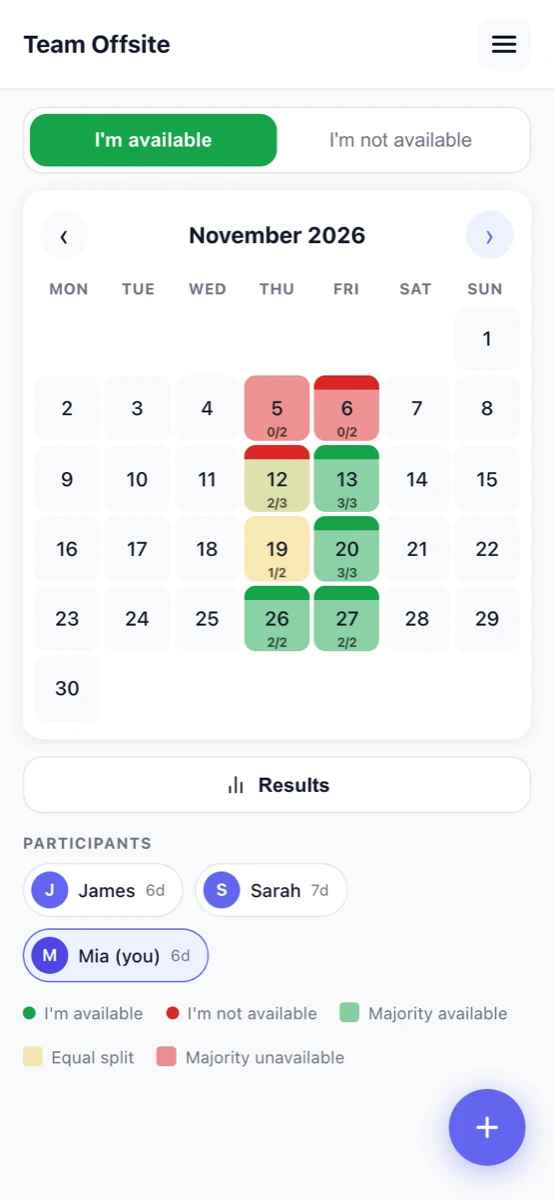
At the top you pick what you are entering: "I'm available" or "I'm not available". Then you tap the days in the calendar. Each further tap on the same day moves it one step along.
In "I'm available" mode:
- 1st tap → green: you are free
- 2nd tap → red: you are not free
- 3rd tap → neutral: no answer
In "I'm not available" mode it runs the other way round: red first, then green, then neutral.
Tapped the wrong day? Just keep tapping until it is neutral again. Any entry can be taken back at any time, and everyone else sees the correction immediately.
What the colours mean
The small dots at the top of a day are your answer. The area behind them is the heatmap across all participants – it shows how well the day suits the group as a whole. The number underneath reads as "this many out of this many are free".
| Colour | Meaning |
|---|---|
| Green | Most people are free on this day |
| Yellow | Evenly split – about as many yes as no |
| Red | Most people cannot make it |
| Grey | Nobody has voted yet |
Everything happens in real time: the moment someone taps, the calendar updates for everyone else without a reload. On a phone you swipe between months; on a desktop two months sit side by side.
Reading off the best date
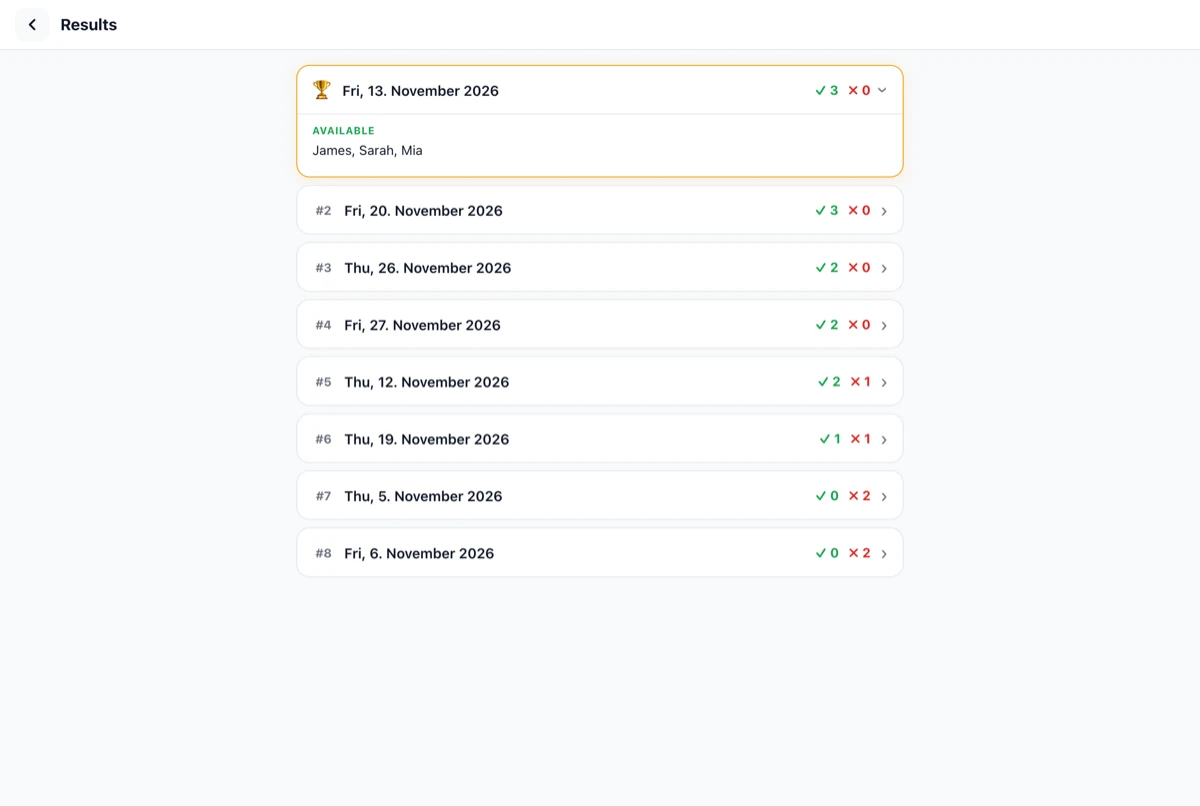
"Results" gives you every day sorted – the one with the most yes votes sits at the top, marked with a trophy. Tap an entry and you see by name who can make it and who cannot. That ends the discussion before it starts.
Frequently asked questions
Do I need an account?
No. There is no registration and no password. You only give a first name so the others know whose entry they are looking at.
What does 2meet cost?
Nothing. No ads, no premium version, no hidden costs.
Do I have to install an app?
No, 2meet runs straight in the browser – on iPhone, Android, tablet and desktop. You can add the page to your home screen and it will behave like an app.
Can I change my answer later?
Yes, any time. Tap the day again until it reaches the state you want – green, red or neutral. Everyone else sees the change immediately.
How many people can take part?
There is no fixed limit. Whether three or thirty, the link works the same for everyone.
Can I rename the event later?
Yes. Tap the pencil icon next to the title in the calendar. The same works for your own name via the menu.
Can the others see when I am not available?
Yes – that is the point. The results view lists for each day who said yes and who said no. If you enter nothing for a day, you simply do not appear for it.
Coming from another tool?
If you have used When2meet before, the difference is that 2meet works with whole days rather than a grid of time slots, and the organiser has nothing to set up beforehand. Read the full comparison, including when When2meet is the better fit →
Create an event now – free and without signing up